
If you are a developer, engineer, or just a beginner starting their career in Python, PyCharm is a game-changer. It is one of the most powerful IDEs that offer deep tooling for writing, testing, and maintenance of high-quality code. In this guide you’ll learn how to download and install PyCharm and how to get the most out of the PyCharm Community Edition or try the premium plan for maximum productivity.
What is PyCharm?
PyCharm is the fully featured Python IDE created by JetBrains to streamline the entire development process. It includes features like autocomplete, advanced refactoring, debugging, and a huge library of extensions that enhance productivity. You can choose between the free PyCharm Community Edition and the advanced Professional Edition for additional features like web frameworks, database tools, and scientific computing.
If you are looking to download PyCharm, visit JetBrains’ official page here.
Why choose the PyCharm IDE?
PyCharm is the top choice for Python developers and engineers because it provides a highly productive development environment. Here is a list of top features of a PyCharm IDE:
- Smart editing features like auto completions and inspections based on code context.
- Refactoring tools such as rename, extract method, and others that help catch bugs easily.
- Built a debugger and test runner.
- Easy environment & interpreter management to take care of virtual environments and project dependencies.
- It has an extensive plugin library that can add linters, formatters, integrations, and more.
- Its version control and advanced code analysis features help boost team productivity and ship high-quality code faster.
| Feature | PyCharm Community Edition | PyCharm Professional Edition |
|---|---|---|
| Price | Free & open-source | Paid (subscription or license) |
| Best For | Students, hobbyists, basic Python development | Professional developers working with web apps, databases, or data science |
| Core Python Support | ✔️ Yes | ✔️ Yes |
| Smart Code Editor | ✔️ Intelligent editing, completion & refactoring | ✔️ Enhanced with extra integrations |
| Debugger & Test Runner | ✔️ Included | ✔️ Included, plus advanced features |
| Virtual Environment Support | ✔️ Yes | ✔️ Yes |
| Web Development Frameworks (Django, Flask, etc.) | ❌ Not included | ✔️ Full support |
| Database & SQL Tools | ❌ Not available | ✔️ Built-in database explorer & ORM support |
| Remote Development & Deployment | ❌ Not available | ✔️ SSH, Docker, remote interpreters |
| Scientific & Data Tools | ❌ Limited | ✔️ Full scientific integrations (Jupyter, SciPy, NumPy, etc.) |
| Front-end Web Support | Limited | ✔️ Professional front-end support |
| Plugins & Extensibility | ✔️ Available | ✔️ Available with more integrations |
If you are just starting out and want a powerful tool at no cost, then go for the PyCharm Community Edition. The PyCharm Professional plan is the best choice if you want to integrate Flask and Django for complex web development tasks or need advanced debugging and database tools. Keep in mind you can always start with the community edition and then upgrade later.
How to Download PyCharm—Step by Step
You should always download PyCharm from JetBrains’ official website. On the download page you will find both options for PyCharm Professional (paid) and PyCharm Community Edition (free); just select your operating system (Windows, macOS, or Linux) and download the version you prefer.
Installation Instructions
Windows:
- Run the installer and follow the setup wizard.
- Choose installation options such as Add PATH, create associations, etc.
- Launch PyCharm and configure the UI and theme and add plugins, etc.
macOS installation:
Open the .dmg file and drag PyCharm to applications. Open PyCharm and complete the initial setup (UI, plugins, etc.).
Linux installation
- Download the .tar.gz archive file and extract it.
- Run:
pycharm/bin/pycharm.shComplete the initial configuration screen.
Some users prefer package managers offered by Linux distributions for the ease of installation. You can search by “download pycharm” for your package. Always download from JetBrains’ official site or trusted mirror sites.

Installing and Configuring PyCharm Community Edition
Following are some basic steps to install and configure PyCharm Community Edition.
Configure the interpreter.
PyCharm needs a Python interpreter. In PyCharm:
Windows/Linux:
File > Settings
macOS:
PyCharm > Preferences
Then navigate to:
Project > Python Interpreter > Add Interpreter
Select an existing interpreter or let PyCharm create one for you.
Create a Virtual Environment:
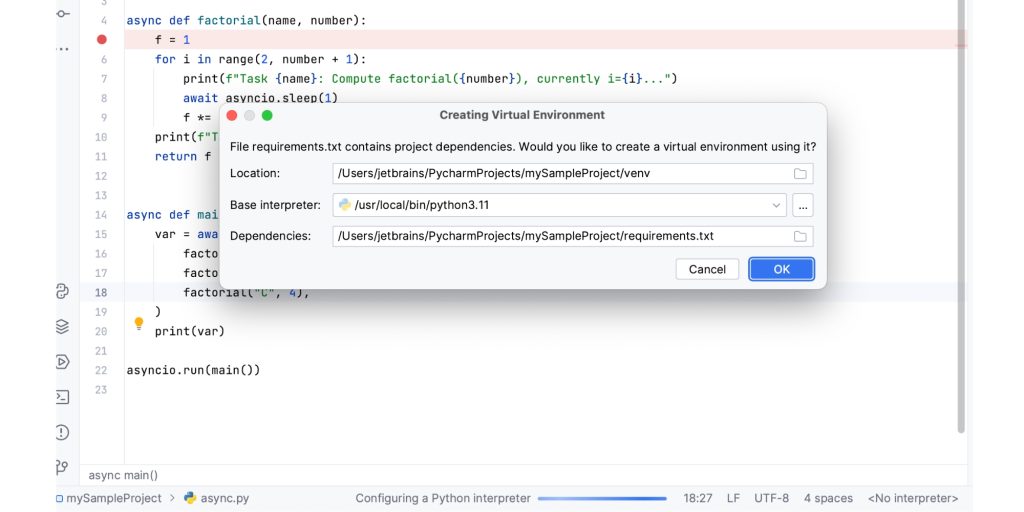
Best practice is to create a virtual environment to keep all the project dependencies isolated. PyCharm can create a virtual environment, or you can manually create it using the terminal.
# Create a virtualenv using venv
python3 -m venv .venv
source .venv/bin/activate  # macOS/Linux
.venv\Scripts\activate     # Windows
Assign the new interpreter in PyCharm, so all the future runs and installations are isolated to that environment.
Install Common Plugins:
Start your PyCharm journey by installing common plugins such as EditorConfig, built-in Git support, Markdown editing, and Python linters (flake8 or pylint).
Common troubleshooting when you download PyCharm:
Here are some common problems and their quick solutions that you can face when downloading and installing the PyCharm environment.
PyCharm is not starting:
Open logs using Help > Show Log in Explorer/Finder to identify errors.
Try File > Invalidate Caches / Restart to reset the environment.
The interpreter is not detected.
Check that Python is installed correctly and is available in PATH (Windows). Use “add interpreter” to manually select the correct binary.
Slow performance:
If you are working with large projects, try disabling the unused plugins and increasing the IDE memory in the pycharm.vmoptions file.
Can’t install packages
Double-check that the interpreter is pointing to the correct virtualenv or Python installation. Run pip install in the terminal and then refresh the packages.
Learning resources and final words:
PyCharm is not just an IDE; it is a powerful workspace that helps you build projects faster and write cleaner code. Now that PyCharm is installed and running, focus on expanding your skills through guided practice and learning. The Python Training—Essentials to Start is a great option that pairs with PyCharm and helps you build your skills faster.
For official downloads, documentation, upgrades, and support, always rely on JetBrains’ official resources.
